Collections
AAA stores data records as JSON, which are gathered together into collections. Consider collections as a cache or SQL table. You can use them for:
- Retrieving provisioned data (via API, for instance).
- Holding temporary data.
- Keeping mappings between different entities (e.g., Certificate SN with device MAC).
- Storing authentication or accounting data.
- Creating usage information.
- Writing policies based on stored information
- etc
Avoid storing secrets or other sensitive values in a collection field as plaintext. Use Vault, or mark the specific field(s) as encrypted instead.
For more information about cache functions, please check Cache Collection functions
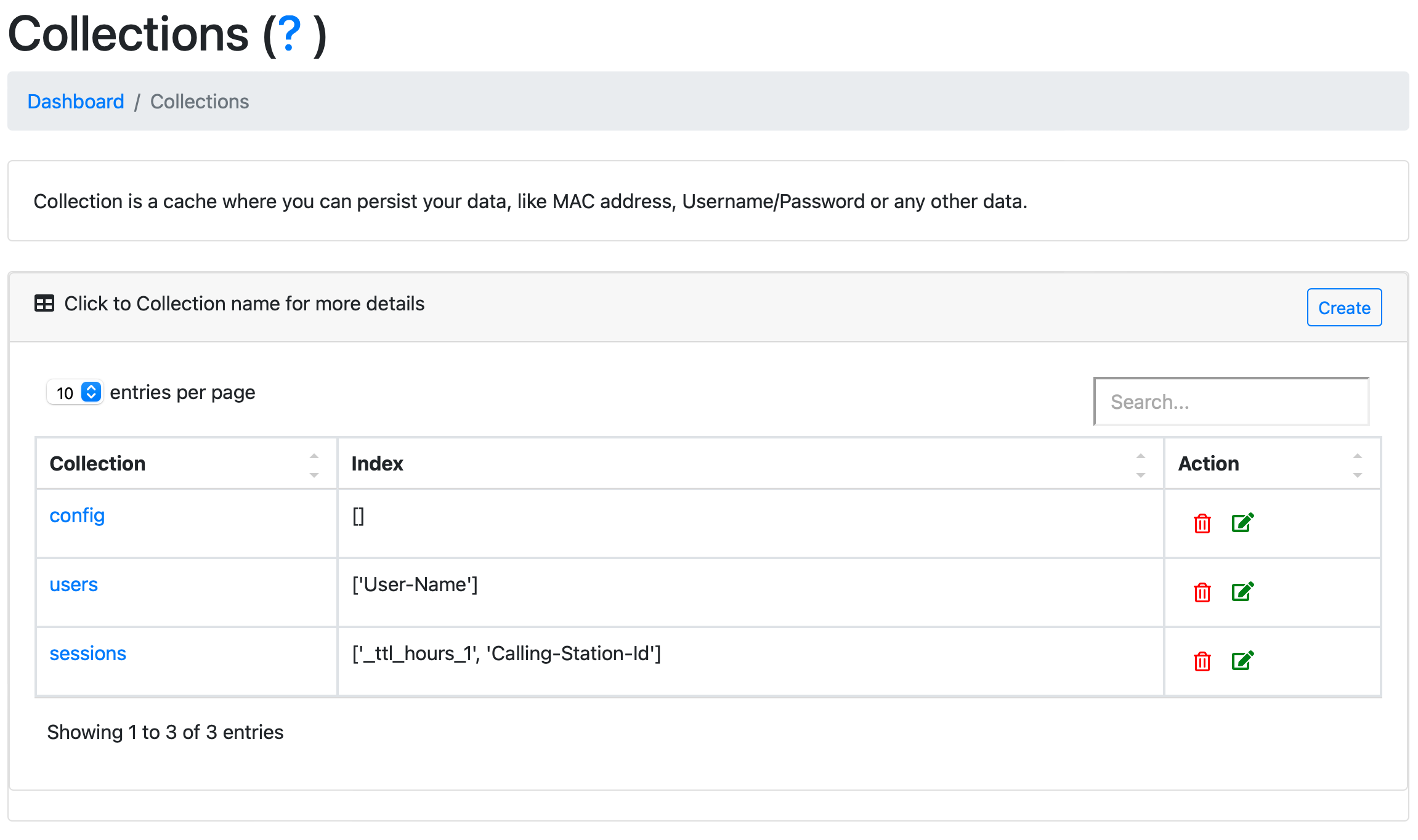
Default collections
Two collections are always present and are managed by the system:
Vault- stores secrets and other sensitive values. Prefer it over a regular collection whenever the data is confidential.config- platform configuration templates and system defaults, available in PolicyLogic asradius.config. See Variables groups - radius.
These two collections have limited actions available on the Collections page and are not listed alongside your account collections.
Adding new collection
To add a new collection, click "New Collection".
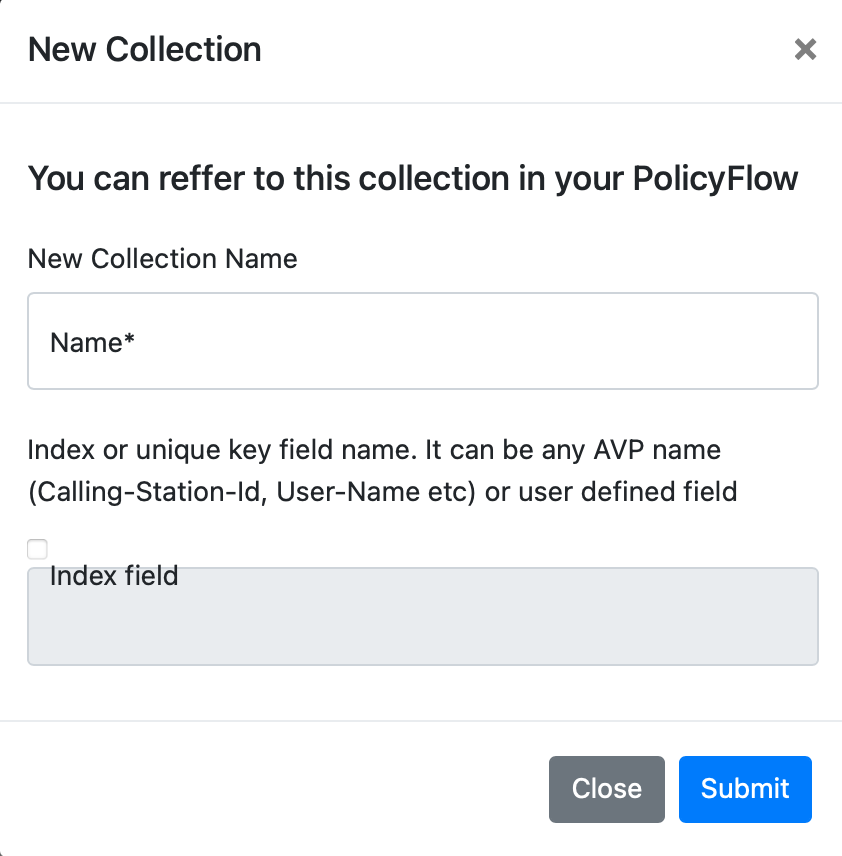
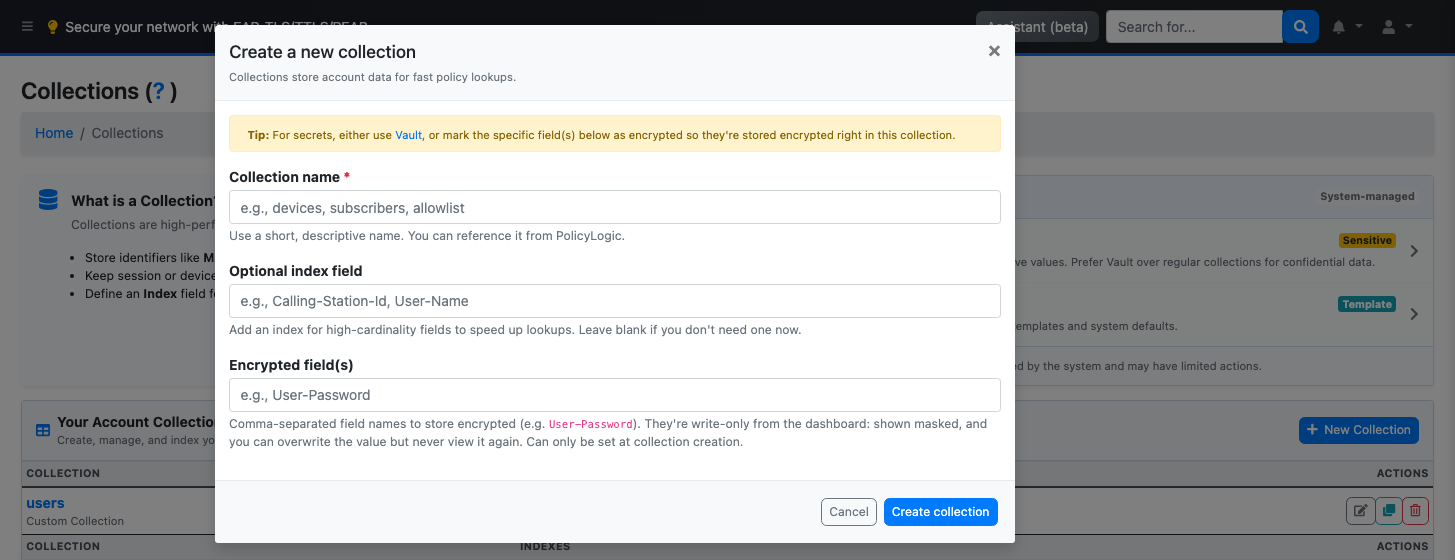
Properties
name: Name field must be unique. This name will be used in querying Collections
index:
Optional. Specify a field to index for quicker lookups or to enforce uniqueness, for example Calling-Station-Id or User-Name. You can add more indexes later, or leave it empty and create one when needed.
Encrypted field(s):
Optional, comma-separated field names (e.g. User-Password) to store encrypted rather than plaintext. Can only be set here, when the collection is created - see Encrypted fields below for adding or removing encrypted fields on a collection later.
Managing indexes
Each collection is listed with its current indexes. Click the trash icon on an index to remove it, or the + icon to add a new one. When creating an index you choose a sort order (ascending or descending) and whether it should be unique, which causes the database to reject duplicate values for that field.
Encrypted fields
Beyond Vault, you can mark specific fields within a regular collection as encrypted, so their value is stored encrypted rather than plaintext, right alongside the collection's other data.
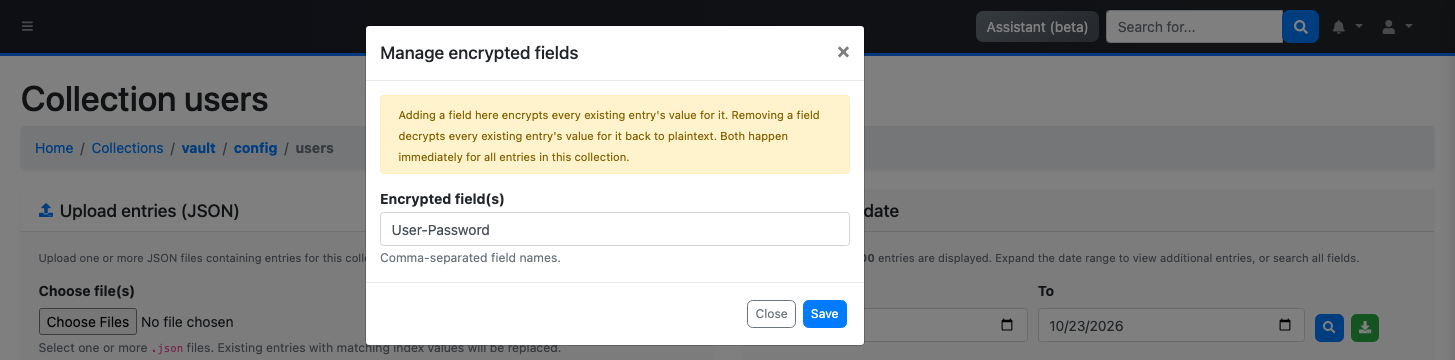
On a collection's page, an Encrypted field(s) row listing which fields are currently encrypted, with a Manage button to change them:
- Adding a field immediately encrypts every existing entry's value for it.
- Removing a field immediately decrypts every existing entry's value for it, back to plaintext.
- Both apply to every entry in the collection right away. For large collections (over 1000 entries), this runs in the background instead of blocking the page, and a banner on the collection page shows while it's still in progress.
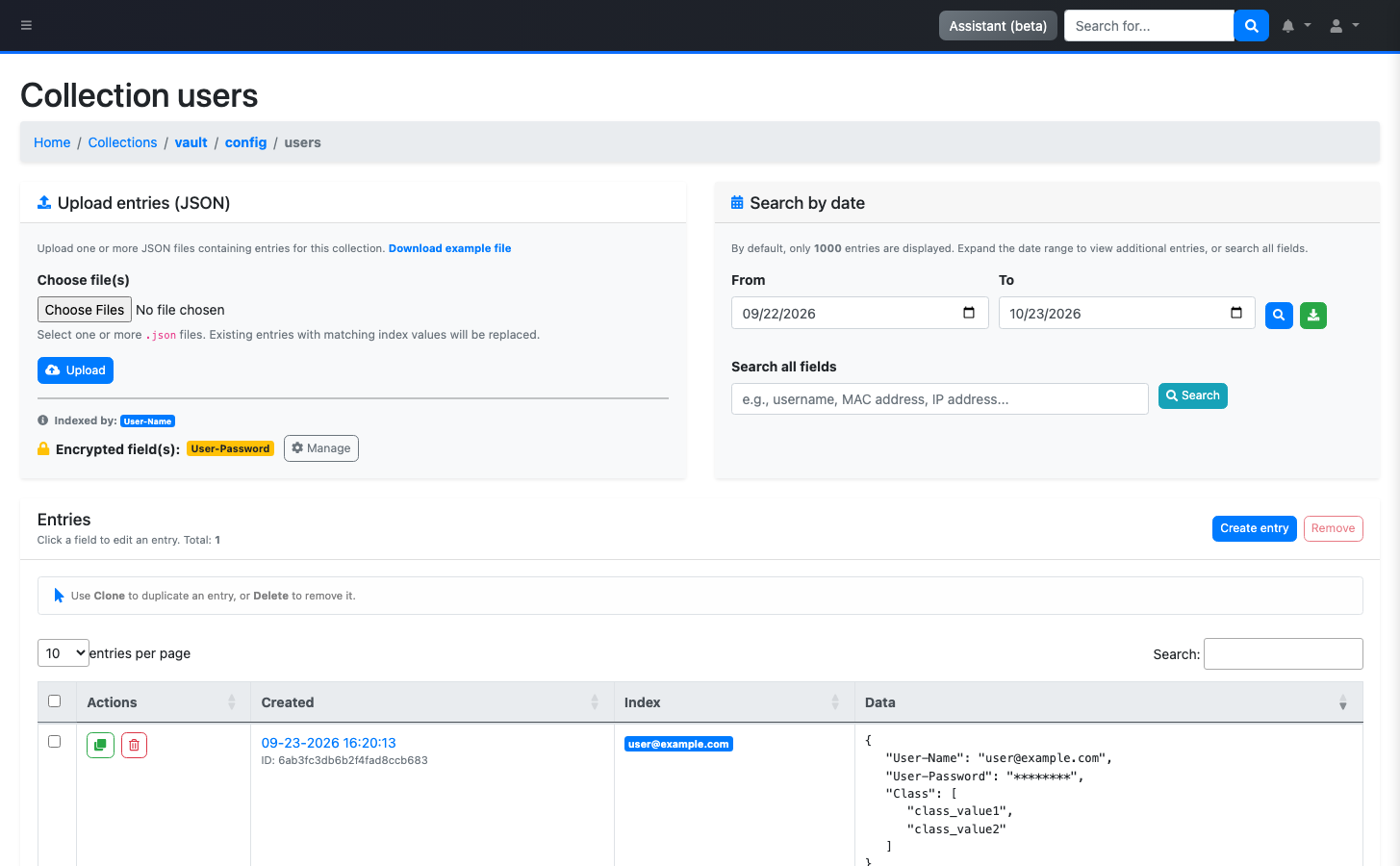
Once a field is encrypted, its value always displays masked as ******** - in the entries table, the entry editor, and exported data. This is intentional and write-only from the dashboard: you can type a new value to overwrite it, but there's no way to reveal the stored value again through the UI.
PolicyLogic still receives the real, decrypted value for these fields at runtime, so an encrypted field works normally in an authentication flow (for example, comparing an encrypted User-Password) - encryption only affects what's shown in the dashboard, not what your scripts see.
Working with entries in a collection
Open a collection from the list to view, search, and manage its entries.
Uploading entries
Upload one or more JSON files to add entries in bulk. An entry whose indexed field matches an existing entry replaces it. A sample file is available from the collection page ("Download example file").
Searching
For collections other than config, you can filter entries by a date range and search across all fields. By default only a limited number of entries are returned; narrow or widen the date range to see more. Results can also be exported as a dataset instead of viewed in the table.
Entries table
Every entry shows its creation date, its indexed value (if the collection has an index), and its JSON data. From here you can:
- Create entry - add a new JSON document to the collection.
- Clone - duplicate an existing entry so you can edit and save it as a new one.
- Delete - remove an entry.
Renaming or cloning a collection
To rename a collection, click the edit button next to it and enter a new name. To clone a collection, click the clone button and enter a name for the copy.
Removing a collection
To remove a collection, click the trash icon next to it and confirm.