NAS List
All entries
The possible options for your NAS include:
-
AccessPoints such as Meraki, OpenWiFi and Cisco (for Meraki guest Wi-Fi, see Meraki guest Wi-Fi)
-
Routers like Cisco, Mikrotik Router Board, pfSense, OpenWRT
-
GGSN or PGW.
-
The AAAs from your MSO (if applicable)
-
SpherAAA as client: Your partner's AAA servers.
Go to NAS & AAA Servers
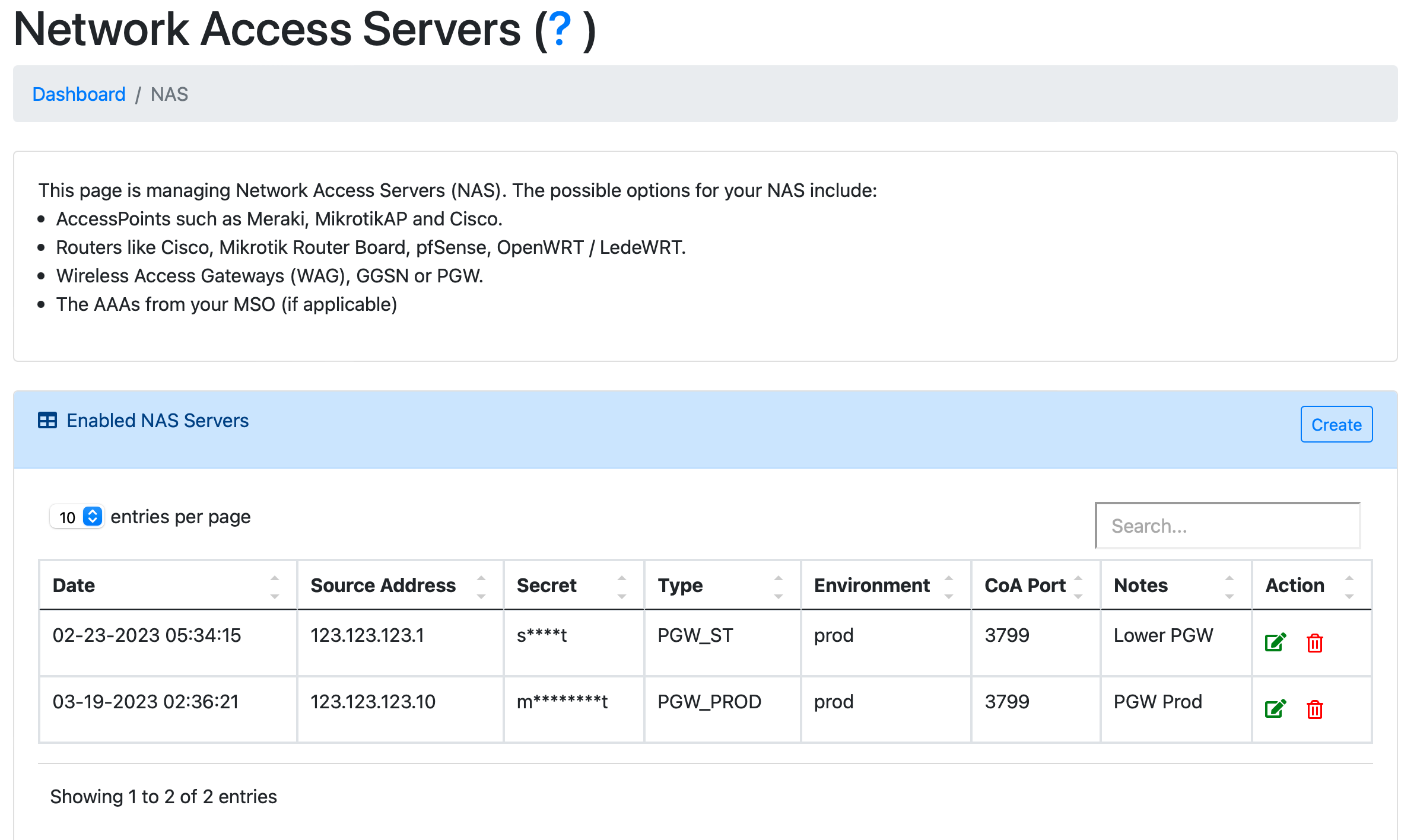
SpherAAA RADIUS endpoint details
The NAS page shows the IP address, Authentication Port, Accounting Port and RADSEC Port that SpherAAA listens on. Use these values when you configure a NAS client or upstream AAA server to talk to SpherAAA.
MSP AAA servers
If your account is a Managed Service Provider (MSP), a separate "MSP AAA Servers" table lists the AAA servers shared across your MSP, with source address, type, environment and notes. These entries are managed by the MSP and are read-only on this page.
Enabled RADIUS clients and servers
The main table lists every configured NAS and upstream AAA server, with source/destination address, protocol, port, secret, type, environment, status and notes. Entries marked "Server" proxy or forward requests to an upstream AAA server. Entries marked "Server/Client" are regular NAS clients.
The Status column shows the result of SpherAAA's health check for that entry (OK, or an error) when available.
Dynamic or changing NAS IP addresses
Plain UDP RADIUS identifies a NAS by its source IP address (or CIDR range) - if your NAS's public IP changes (a residential/dynamic ISP connection, a device behind a DHCP-assigned address, etc.), requests from it will start getting rejected as soon as the address no longer matches what's registered here, since SpherAAA has no other way to recognize it.
If your NAS's IP isn't stable, switch that entry's Protocol to RADSEC instead. RadSec identifies a client by its SpherAAA-generated client certificate, not its source IP, so the entry keeps working no matter how often the NAS's address changes - there's nothing to update when the IP moves. Clients using certificates from your own imported CA work the same way once their certificates are registered. See the Protocol/certificate fields below, and RADSEC Servers for certificate management.
Adding new entry
After clicking to Create, pick a NAS Role first - it changes which fields the rest of the form shows:
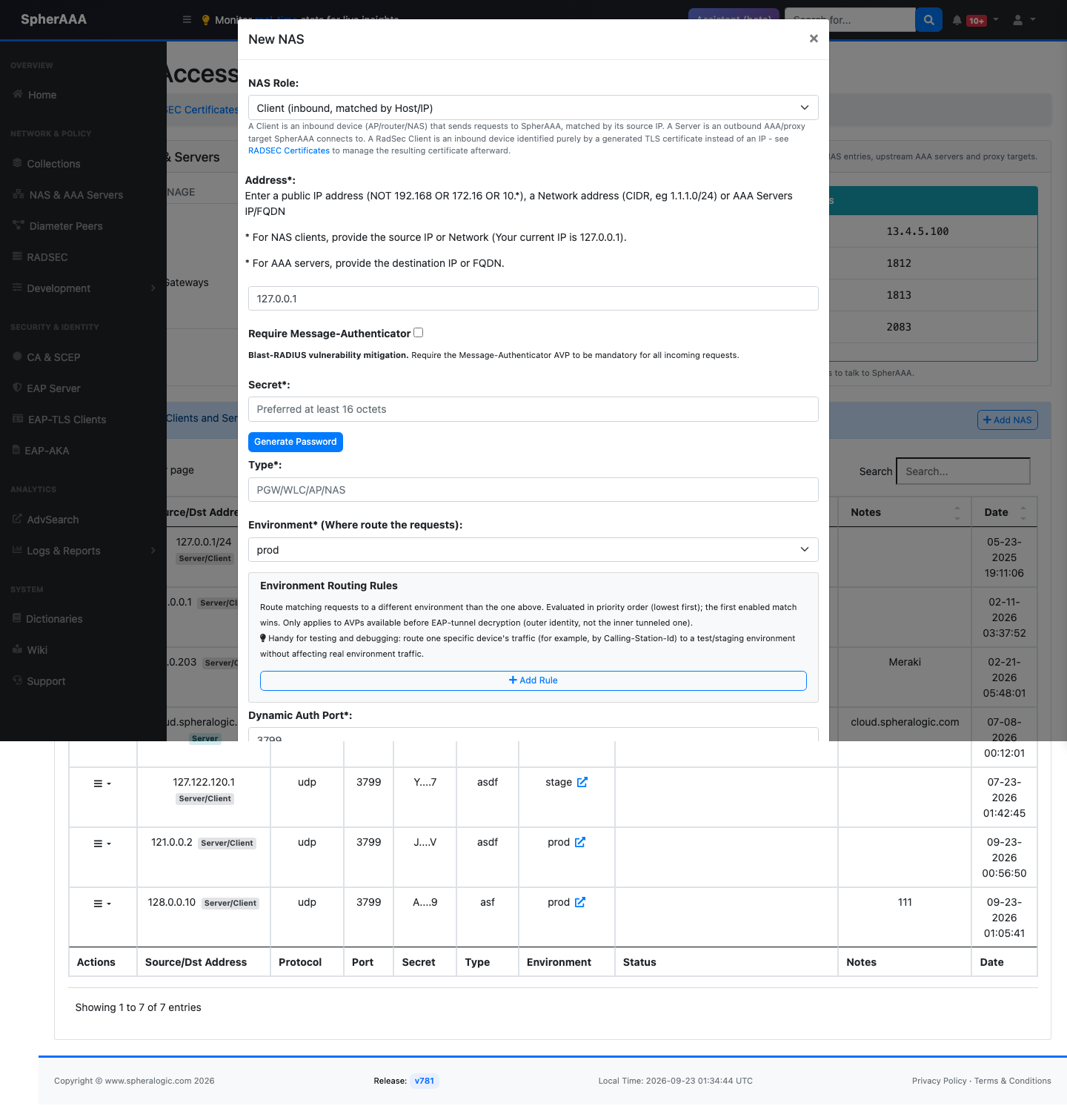
- Client - sends requests to us, recognized by IP: the default. A device (access point, switch, router, NAS) identified by its source IP, as described throughout this page.
- Server - a AAA server we forward requests to: another AAA or proxy server that SpherAAA proxies or forwards requests to.
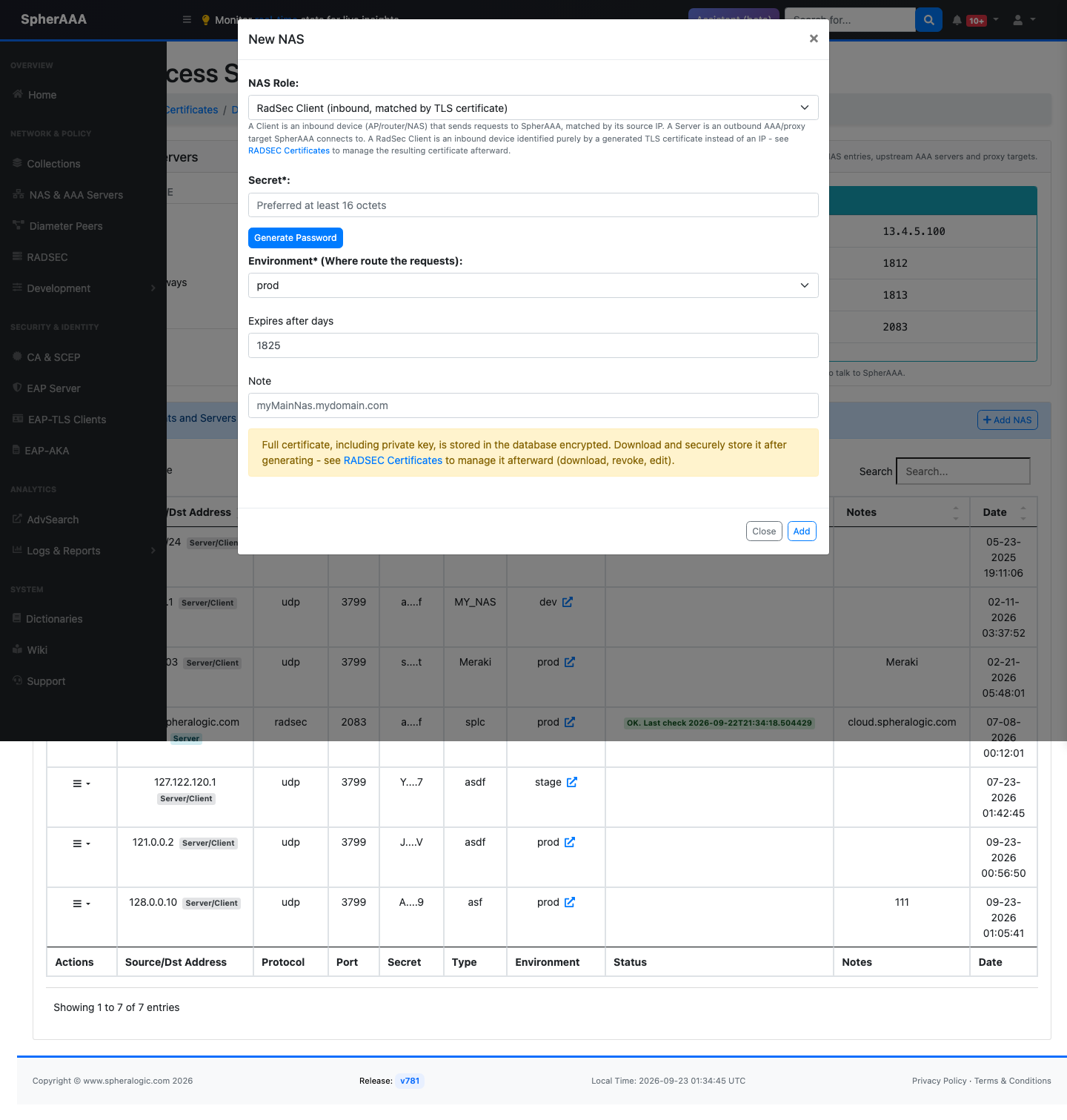
- RadSec Client - sends requests to us, recognized by TLS certificate: a convenience shortcut to generate a RADSEC client certificate right from this modal, instead of visiting the RADSEC Certificates page separately. Just fill in Secret, Environment, Expires after days, and a Note, then submit. You're taken to the RADSEC Certificates page afterward to download and manage it.
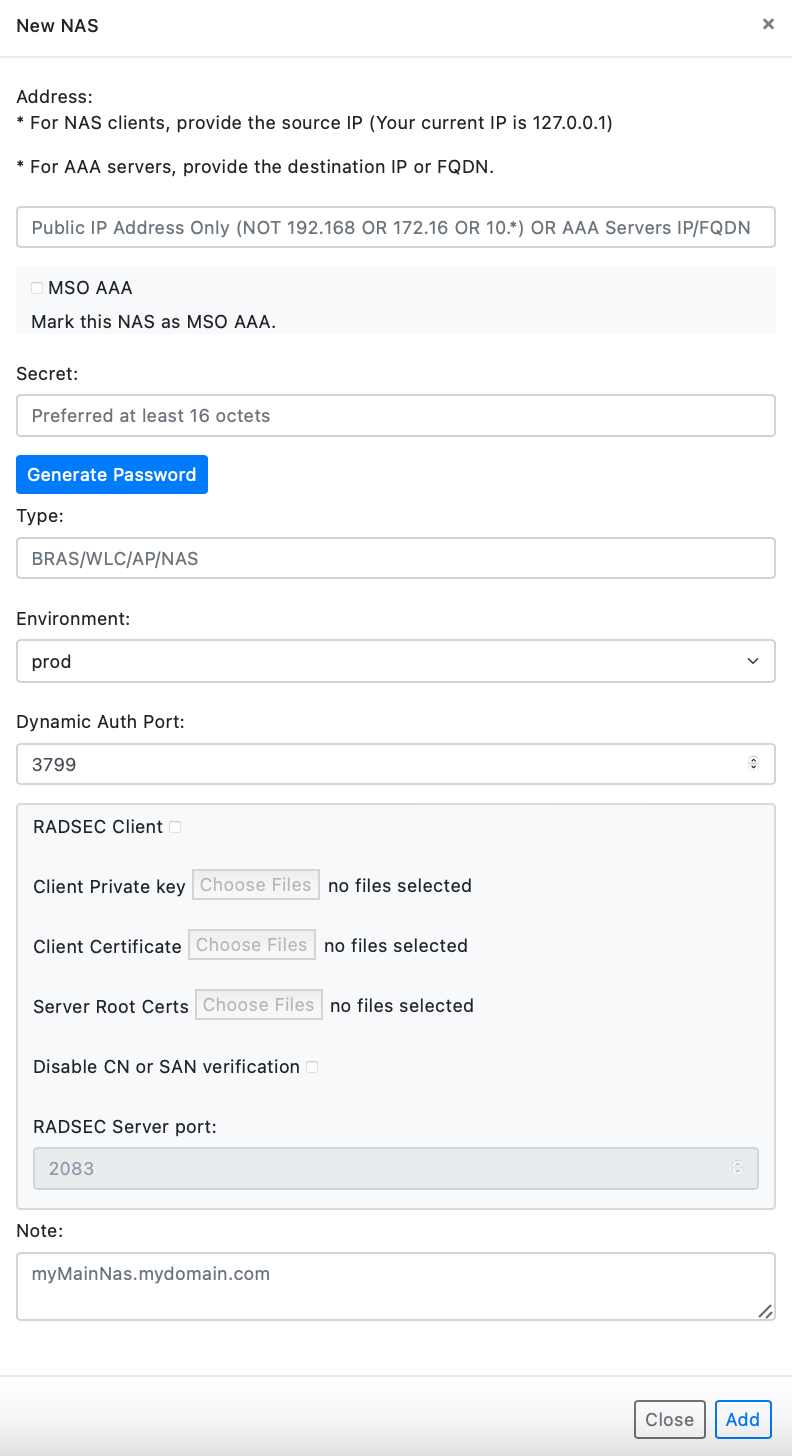
For Client (Host/IP) and Server roles, fill in these fields:
-
IP Address:Enter a public IP address (NOT 192.168 OR 172.16 OR 10.*), a Network address (CIDR, eg 1.1.1.0/24) or AAA Servers IP/FQDN. For NAS clients, use the source IP or network. For AAA servers, use the destination IP or FQDN. -
MSP AAA:(MSP accounts only) Mark this entry as an MSP AAA server. When enabled, you can set a regular expression to route requests by NAI realm (for example(.*)@(.*)), and test it against a sample realm before saving. -
Require Message-Authenticator:Requires the Message-Authenticator attribute on all incoming requests from this NAS. This mitigates the Blast-RADIUS vulnerability. -
Secret:Transactions between the client and RADIUS server are authenticated through the use of a shared secret, which is never sent over the network. Use "Generate Password" to create a random secret of at least 16 octets. -
Type:Type can be used to group / classify NAS's into sub-groups. Like NAS-Type might be ResidentialAp, CafeAp, OutdoorAP, Hotspot, WLC, BRAS etc. This variable is accessible on PolicyLogic viaradius.nas['Type']. -
Environment:This Network Access Server (NAS) will utilize the assigned environment, including PolicyLogic and EAP certificates. -
DM / CoA Port:RADIUS DM (Disconnect Message) and RADIUS CoA (Change of Authorization) is a feature that allows a RADIUS server to adjust an active client session. Default port is 3799 -
Protocol:(Server role only) The transport protocol for this server: UDP, TCP or RADSEC. -
Previously Imported Certificates:For RADSEC Servers, use previously imported certificates. Manage it using RADSEC Servers -
Client Private Key:Private key file for RADSEC Client. -
Client Certificate:Certificate file. -
Server Root certificate:CA Certificate for RADSEC server. -
Disable CN or SAN verificationDo not validate the RADSEC server's CN or SAN with the server's IP or FQDN. -
RADSEC Port:RADSEC Server port. -
Note:Add description for your NAS.
Click to submit to save your changes. Adding, editing, or removing a NAS entry shows a brief notice that the change can take up to 30 seconds to actually take effect.
Note: If you getting "Conflict NAS IP Address" error, that means you are not using public IP address of your NAS or this IP is already registered
After adding your first NAS details, you can continue configuration on your actual NAS hardware/software.
When you done on integration on your NAS, you can start adding your new users
Routing policies
By default, every request from a NAS is handled by the environment set on that NAS's Environment field. Routing policies send some requests to a different environment, based on request attributes such as User-Name, realm or Calling-Station-Id, without creating a separate NAS entry. Requests that match no rule use the client's own environment.
Manage them on the Routing Policies page:
- Click New policy, give it a name, and choose the Protocol: RADIUS / RadSec, Diameter, or any protocol (User-Name and realm only).
- Add one or more Rules. Each rule has one or more conditions on request attributes, all of which must match, and the environment to send matching requests to.
- Choose where the policy applies: pick clients directly under Apply to clients, or enter tags under Apply to tags.
- Click Save policy.
A client uses the policy it's picked in directly. Otherwise it uses the first policy, top to bottom, that has one of its tags. The Clients & tags tab shows each client's default environment and the policy in effect.
To check a policy before relying on it, use the Test tab: choose a client, enter request attributes, and click Check to see which environment the request would go to. Only the attributes a client sends before the EAP tunnel opens can be matched. For EAP, that's the outer identity.
Routing policies are useful for testing changes against a subset of traffic, or for splitting devices or users on the same NAS across environments.
RADSEC
The original RADIUS protocol is insecure. RADSEC wraps RADIUS in a TLS tunnel.
See RFC 6614 for details. The SpherAAA RADSEC server and client support TLSv1.2 and TLSv1.3. On TLS 1.3 they also support hybrid post-quantum key exchange (X25519MLKEM768 and SecP256r1MLKEM768), which peers that support it, such as those built on OpenSSL 3.5 or later, use automatically.
The RADSEC page in the dashboard covers two things, split across tabs:
- SpherAAA RADSEC Client Certificates: generating RADSEC client certificates for accessing SpherAAA over RADSEC (SpherAAA acting as a RADSEC server).
- Third-Party AAA RADSEC Server Certificates: importing and managing certificates for third-party AAA servers, used during dynamic peer discovery for RADSEC servers via EAP realm in PolicyLogic, or when manually adding a NAS server using NAS Configuration.
RADSEC Client Certificates
Generate a dedicated RADSEC client certificate for each RADSEC client (NAS, proxy, or RADIUS gateway) that connects to SpherAAA. How identification and authentication work:
- The client certificate's identity can be used to recognize the client when the source IP address is not reliable.
- The selected environment determines where requests are routed once the client is identified.
- The secret authenticates the RADSEC client to the SpherAAA RADSEC server. The default value is
radsec(per RFC 6614), but you can set a custom secret for better security.
To generate a certificate:
- Click Generate SpherAAA RADSEC Client Certificate.
- Set a Secret (or click Generate Password), choose the target Environment, set an expiration (Expires after days, default 1825), and add a Note.
- Click Generate.
After generation, download and securely store:
- Client certificate (included in the PEM bundle)
- Client private key (included in the PEM bundle)
- SpherAAA Root CA
Protect the downloaded PEM bundle like a password: anyone holding it can authenticate as that RADSEC client.

The certificates table lists each entry's environment, secret, notes, serial number, creation and expiration dates, subject, and issuer. From the row's Actions menu you can:
- Download the certificate (client certificate and private key)
- Show the certificate content
- Activate or revoke the certificate
- Edit the environment, secret, or note inline
- Delete the certificate (not recoverable)
Alternative CA Certificates
If your RADSEC clients use certificates from your own CA, import that CA's certificate instead of generating client certificates in SpherAAA, then register each client certificate under it.
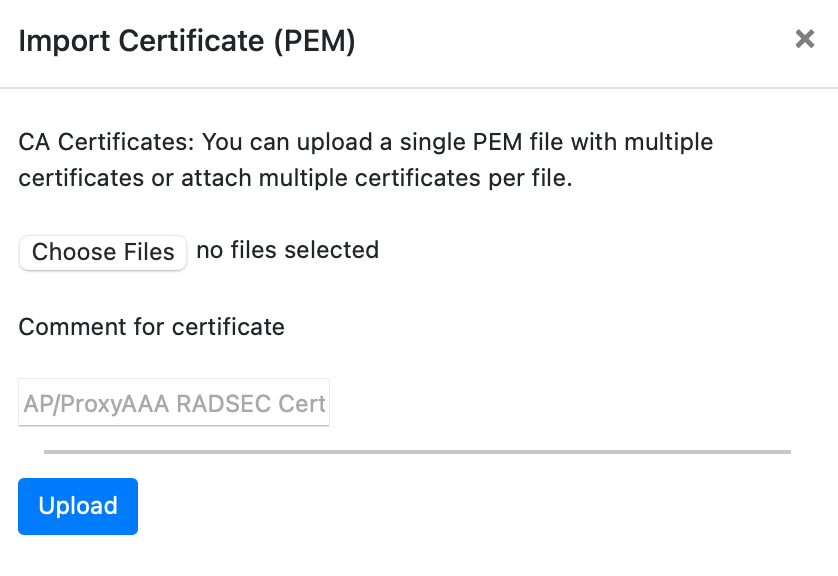
Importing your CA: click Import CA Certificate, and upload PEM files or paste the PEM text, with a comment to identify it. Upload public certificates only, never a private key. You can include a root CA and its intermediates together. Each is imported as a separate entry. Make sure the CA that directly signs your client certificates is among them, for example the intermediate.
Imported CAs are listed in the Imported CA certificates (third-party) card, with their subject, issuer, expiry date, and how many client certificates are registered under each (or None yet). From there you can register a certificate, view the CA's content, or remove it.
Registering client certificates: click Register certificate next to the CA, then:
- Upload the client's public certificate as a PEM file, or paste it as PEM text.
- Choose the Environment its requests should use.
- Set its RADIUS Secret, or click Generate. The default is
radsec. - Add a Note, and save.
The certificate must be a client certificate (not a CA), must not be expired, and must be signed by one of your imported CAs. If it was signed by a different imported CA than the one you picked, such as an intermediate, SpherAAA uses that one automatically.
Registered certificates appear in the RADSEC certificates table with a Registered · CA: name badge. Since SpherAAA doesn't have their private key, they can't be downloaded, but you can edit their environment, secret and note, revoke them, or delete them, like generated certificates. Registered certificates count toward your plan's RADSEC client limit. Imported CAs don't.
Only registered, unexpired certificates are accepted. A certificate signed by your imported CA isn't enough on its own, so register every client certificate under its CA. The registered entry sets the client's environment and secret. If an imported CA has no registered certificates yet, the RADSEC page shows an Action needed: register your client certificates banner naming it, since its clients can't connect.
Changes apply to new connections within about 10 seconds. Clients that are already connected need to reconnect.
MikroTik example
- Upload RADSEC certficate to MikroTik using Files menu:

- Import certificate using System > Certificate

-
In the RADIUS settings, create a new RADIUS Endpoint configuration as showing below:
-
Service: depends on service
- Address:
- Protocol: radsec
- Secret: Shared secret from the NAS
- Timeout: at least 2000ms
- Certificate: choose certificat from the list

Third-Party AAA RADSEC Server Certificates
Use this area when SpherAAA must connect securely to an external AAA platform over RADSEC. You upload the peer credentials and trust chain so SpherAAA can open and validate TLS sessions to remote RADIUS/AAA services.
This setup is common in roaming and federation scenarios (for example, OpenRoaming or eduroam), especially when peers are discovered dynamically through DNS or when connecting two AAA servers over the public Internet, without requiring IPsec or a VPN.
What to import
- Client private key - proves SpherAAA identity to the remote server.
- Client certificate - sent by SpherAAA during TLS negotiation.
- Root CA / intermediate CA chain - verifies the certificate presented by the remote AAA server.
Tip: provide the full CA chain whenever possible to avoid "unknown issuer" errors during validation.
Recommended workflow
- Collect the required certificate files from the RADSEC server:
- Client private key
- Client certificate
- Server root CA / CA chain
- In SpherAAA, navigate to RADSEC > Third-Party AAA RADSEC Server Certificates, then select Import AAA Certificate. Upload the private key, client certificate, and CA chain, and add a note to identify the peer (for example, the peer's hostname).
- Keep CN/SAN verification enabled. Disable it only when required for a trusted peer that you control. Disabling hostname verification reduces TLS protection.
- For dynamically discovered peers, reference the imported certificate set in PolicyLogic.
- For manually configured peers, assign the imported credentials in NAS Configuration when the NAS entry is set as a RADIUS server.
- If SNI is required, use a hostname (FQDN) as the destination instead of an IP address.
Treat the uploaded private key as a sensitive credential, and check that the certificate's expiration date and issuer chain are correct before saving.
Managing imported certificates
The certificates table lists each entry's ID, serial number, notes, creation and expiration dates, subject, and issuer. From the row's actions you can:
- Download the certificate package
- View certificate details
- Revoke or re-enable a certificate
- Remove a certificate entry (not recoverable)
Certificates for outbound Diameter connections are managed separately on the Diameter Certificates page - see Diameter.
Diameter connections (for HSS/carrier-network integrations such as EAP-AKA) are configured separately - see Diameter.